Software updates are meant to keep your computer secure, stable and compatible, but they do not always go smoothly. An update can sit at the same percentage for hours, restart in a loop, show a vague error code, or refuse to install with no clear explanation.
The good news is that most update problems have sensible causes. If you know what to check, you can avoid rushed fixes that make things worse and decide when it is time to get expert software support.
Why updates fail in the first place
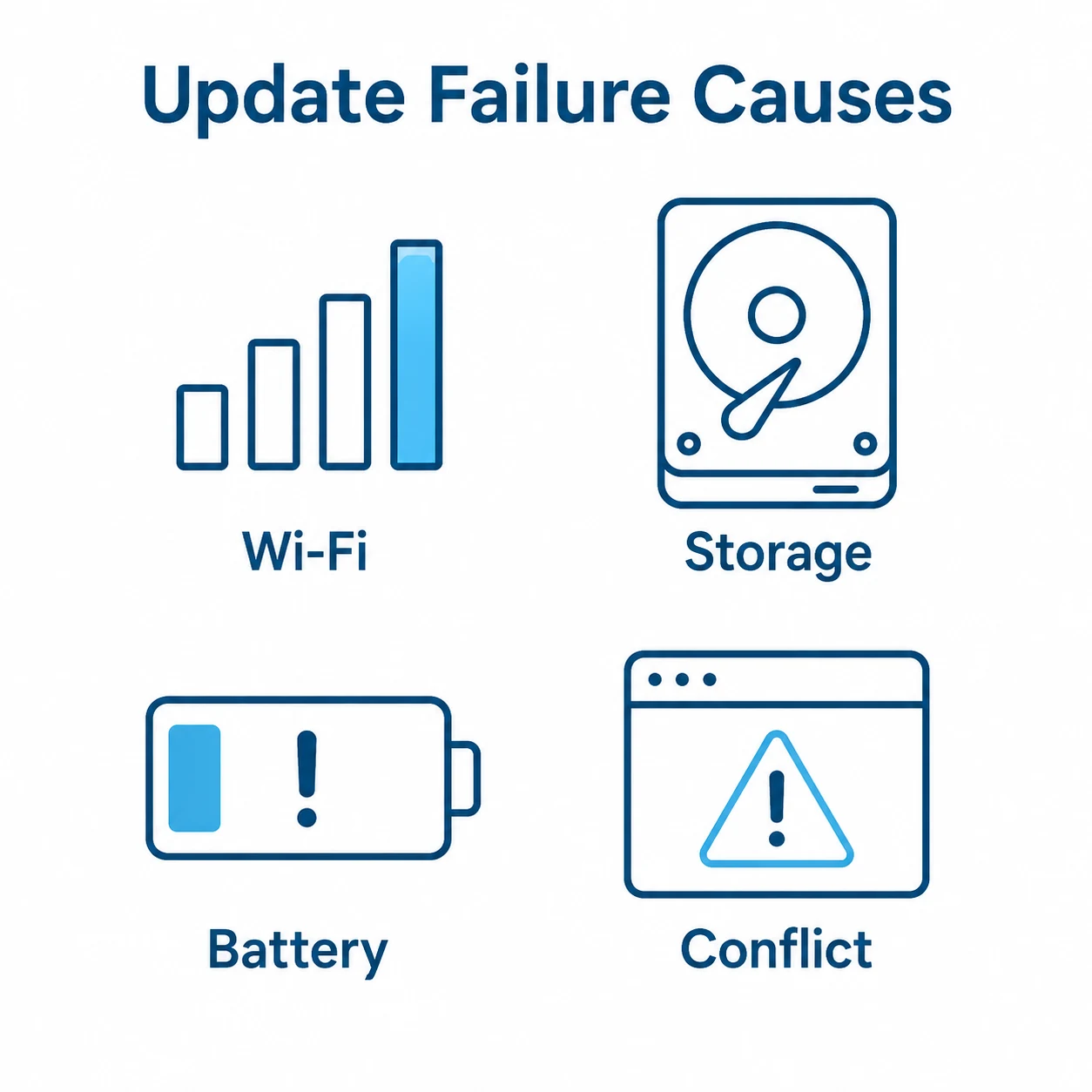
Software updates rely on several parts of your computer working together. The update must download correctly, unpack into temporary folders, check your current version, confirm there is enough storage, close or replace files that are in use, then restart services or the whole system. If one part of that chain is interrupted, the update may fail.
Common causes include low storage space, unstable internet, damaged update files, security software blocking a change, background apps holding files open, account permission problems, or an older application version that is too far behind to update cleanly. Sometimes the issue is not the update itself, but the condition of the system it is being installed on.
It helps to separate software updates from driver updates. Software updates usually affect the operating system or applications, such as browsers, office apps, accounts, email tools and security programs. Driver updates affect the way hardware communicates with the computer. If your issue involves graphics, sound, printers or Wi Fi hardware, a guide such as what driver updates do for your computer may be more relevant.
What to check before you try a fix
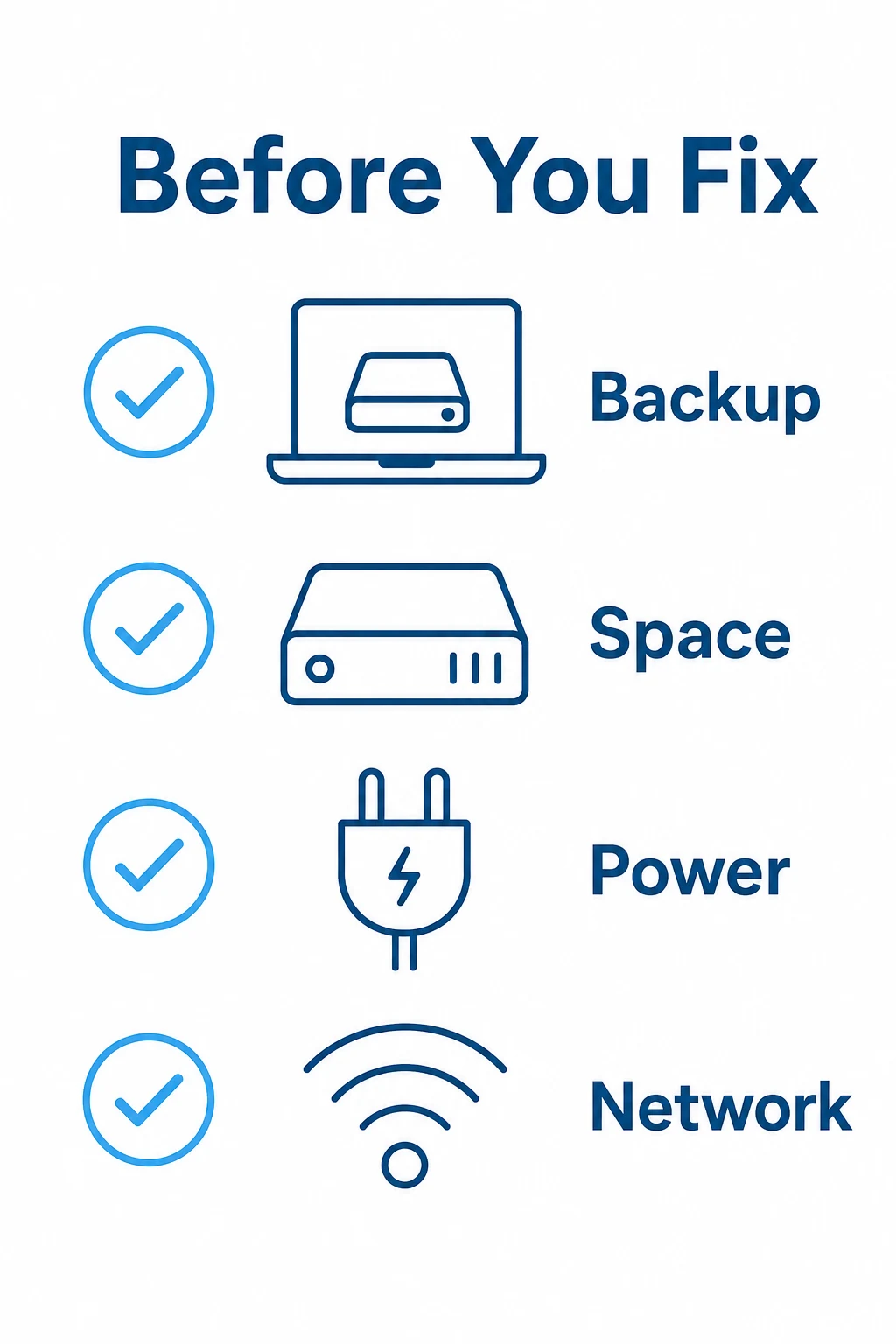
Before forcing anything, take a few minutes to check the basics. This reduces the risk of file corruption, failed restarts or repeated installation loops.
- Save your work. Close documents, browser tabs with unsaved forms, photo editors and any business software that may be writing files in the background.
- Check storage space. Updates often need more temporary space than the final installed size suggests. If your main drive is nearly full, clear space first.
- Confirm power is stable. On a laptop, plug in the charger. On a desktop, avoid starting major updates during storms, electrical work or any situation where power may drop.
- Restart once. A normal restart can clear pending changes, release locked files and finish earlier update stages.
- Check the exact message. If there is an error code, copy it exactly. Do not rely on memory, because one character can change the meaning.
If the update affects important work software, accounts, email, finance tools or anything linked to client data, it is worth being more cautious. A failed update on a casual app is irritating. A failed update on software you depend on every day can interrupt work very quickly.
How to deal with stuck installations

A stuck update is one of the most frustrating problems because it is not always obvious whether the computer is still working. Progress bars can appear frozen while files are being checked in the background, especially on older machines or systems with slow storage.
If the computer is still responsive, give it time first. Check whether the storage light is active, whether fans are changing speed, or whether the percentage occasionally moves. If there is clear activity, interrupting the process too early can create more work.
If nothing changes for a long time and the computer is still usable, close other programs and check whether the update tool offers a cancel or retry option. Use the built in option where possible. Avoid switching the machine off unless it is genuinely unresponsive or the update has clearly failed.
If the computer is frozen, a forced restart may be unavoidable. After restarting, do not immediately hammer the update button again. Let the system load fully, check whether it is repairing or rolling back changes, then restart normally once more if requested. If the same update fails again, that is a sign to diagnose the cause rather than repeat the same attempt.
For wider operating system issues, it can also help to compare the symptoms with broader Windows guidance, such as the common Windows 11 issues guide. Just remember that a general Windows problem and a specific software update failure are not always the same thing.
Safe fixes that usually come first
Start with low risk steps. They may sound simple, but they solve many update failures without touching personal files or making major system changes.
First, restart the computer and try the update again from the official update area or the software developer’s own app. Avoid downloading update files from random search results, even if the page looks convincing. Fake installers are a common route for unwanted software.
Next, check your internet connection. A weak or unstable connection can leave partial downloads behind. If possible, use a reliable network and pause large downloads, cloud sync or streaming while the update runs.
Free up storage space if needed. Empty the recycle bin, remove temporary files through the system settings, and uninstall software you no longer use. Be careful with folders you do not recognise. Deleting the wrong system folder can create a bigger problem than the failed update.
If the update still fails, check whether your security software is warning about the installer. Do not simply turn protection off and hope for the best. Read the message, confirm the software source, and only allow changes when you trust the update. If security warnings appear often, it may be worth reviewing your protection setup alongside advice on choosing the right antivirus software.
Finally, check whether the software needs an intermediate update. Very old versions sometimes cannot jump straight to the newest version. In those cases, installing an earlier supported version first may be safer than forcing the latest installer over the top.
Compatibility concerns and when to wait
Not every update should be installed the second it appears. Security updates are usually important, especially for browsers, operating systems, email apps and antivirus software. Feature updates can be different. They may change menus, remove old options, require newer hardware, or affect compatibility with older printers, scanners, plug ins or business tools.
Before installing a major update, check whether the software you rely on supports it. This is especially important for accounting software, design tools, specialist database programs, older games, accessibility tools, and anything that connects to external equipment.
If the computer is used for work, avoid starting a major update just before a deadline, meeting or trip. Choose a time when you can let the process finish properly and still have space to deal with a restart, login prompt or settings change afterwards.
Compatibility also matters with older machines. A computer may technically meet the minimum requirements but still feel slow after a large update. That does not always mean the update is bad. It may mean the system needs cleanup, storage checks, memory review or a more careful installation approach.
When professional software support makes sense
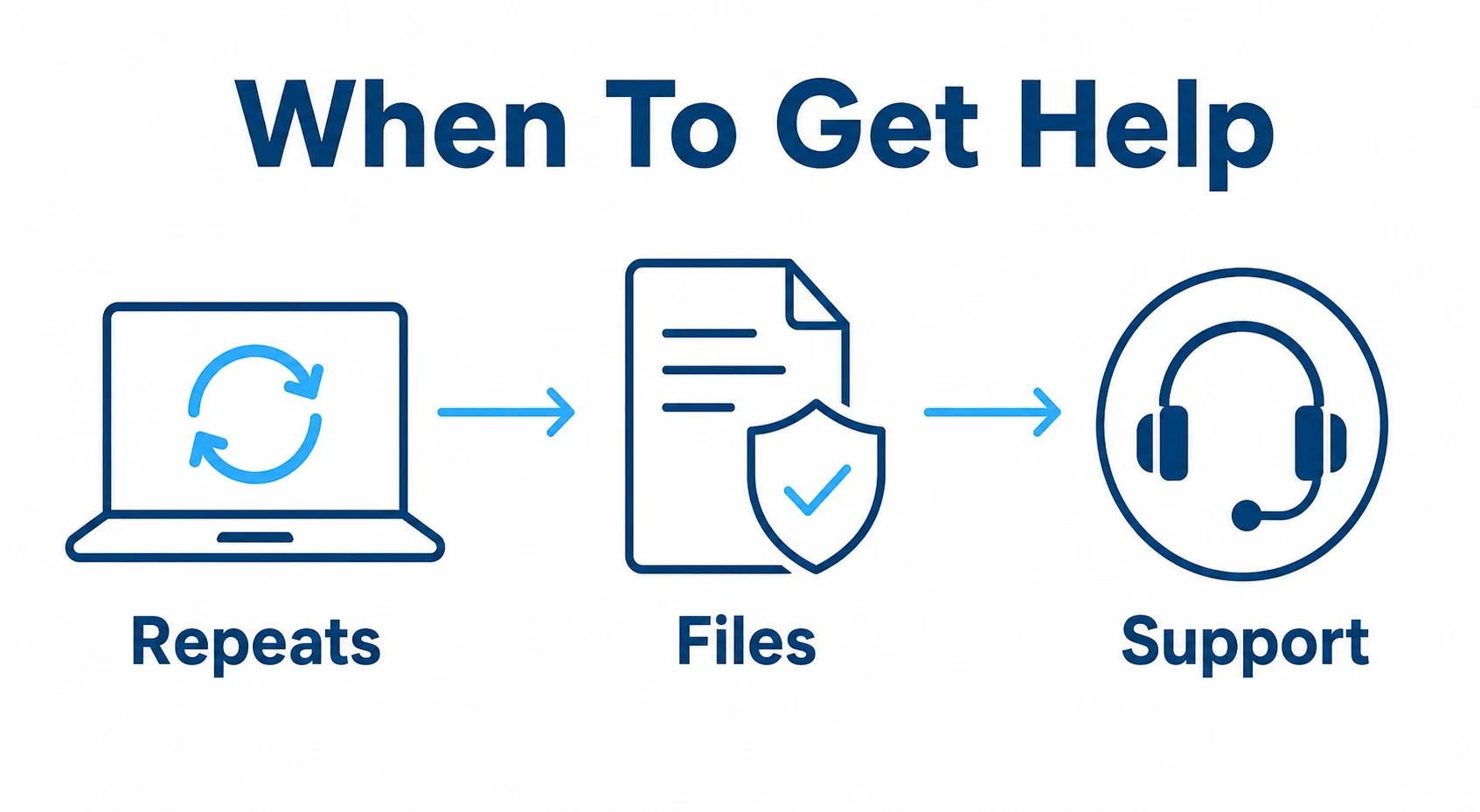
There is a point where repeated retries waste more time than they save. If the same update fails more than once, if the computer gets stuck during restart, if you see account errors, or if important software will not open afterwards, it is sensible to stop and get help.
Professional support can check the underlying cause, protect your files, review error logs, repair damaged update components, remove broken installer files, confirm compatibility and make sure the software is working properly afterwards. That is much better than guessing through fixes from different forum posts.
PC Fixer Cumbria provides software support for update errors, stuck installations and application problems, including cases where the issue is unclear at first. The aim is not just to get one update installed, but to leave the computer stable, secure and easier to use.
If you are dealing with several problems at once, such as slow performance, unwanted pop ups, failed updates and unreliable apps, it may also be useful to look at the wider computer repair and support services available. Update failures often reveal other maintenance issues that are worth sorting at the same time.
- Software updates can fail because of low storage, damaged downloads, permission issues, security blocks or compatibility problems.
- Do the simple checks first, including saving work, restarting, checking storage and noting the exact error message.
- Avoid random installer downloads and use official update sources wherever possible.
- Major feature updates deserve more caution than routine security updates, especially on work computers.
- Repeated failures are a sign to diagnose the cause rather than keep retrying.
Frequently asked questions
Is it safe to turn off a computer during an update?
Only do this if the computer is genuinely frozen or there is no practical alternative. If there is still activity, it is usually safer to wait. Interrupting an update can leave files unfinished and may cause startup problems.
Why does the same update keep failing?
Repeated failure usually means something underneath has not been fixed. Common causes include low storage, corrupt temporary files, old software versions, account permission issues or another program blocking the change.
Should I install every update as soon as it appears?
Security updates should usually be installed promptly. Larger feature updates are worth checking first, especially if you rely on older software, specialist tools or connected equipment.
Can a failed update delete my files?
Most failed updates do not delete personal files, but any repair work carries more risk if the system is unstable. Backups are always wise before major updates or deeper fixes.
Need help with a failed update?
If an update is stuck, failing repeatedly or causing software problems, PC Fixer Cumbria can help you get it sorted safely and calmly.